WordPress admin login: access and secure it on a VPS
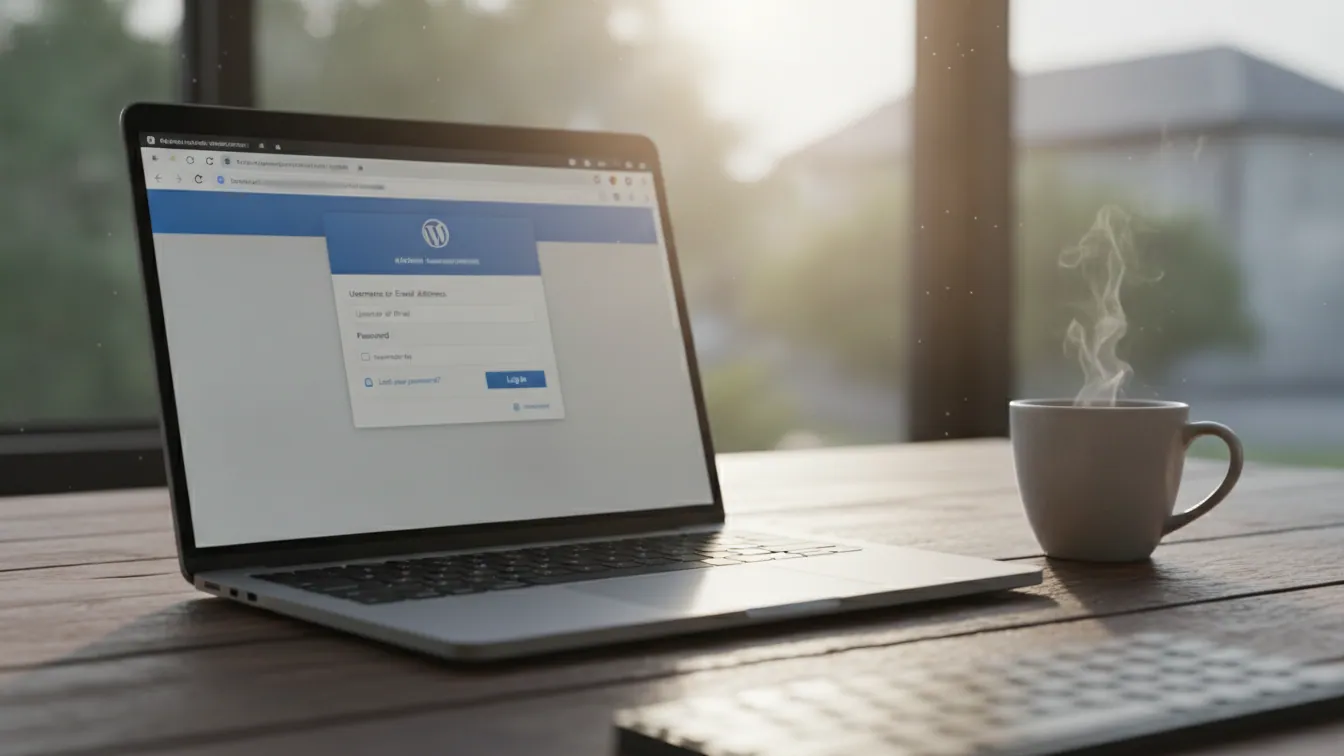
To reach the WordPress admin login, add /wp-admin or /wp-login.php to your domain name, for example yourdomain.co.uk/wp-admin. Sign in with the username or email address and password of an administrator account. The rest of this article covers troubleshooting, user roles and then locking that page down on a server you control.
WordPress runs 39.2% of all websites, or 57.9% of those whose CMS is known (W3Techs, November 2026). That makes its login page one of the most targeted on the web, and your logs probably already show it.
In brief
- The login address is
/wp-adminor/wp-login.phpadded to your domain, unless someone has customised it. - With SSH access and WP-CLI, you can reset a password or disable a faulty plugin in seconds.
- One named account per person, with the lowest role that does the job, limits the damage if an account is compromised.
- Four layers work together: a custom login URL, 2FA, fail2ban and IP restriction.
- These protections need root access, which you have on a KVM VPS.
WordPress admin login: how to reach wp-admin
wp-admin is the dashboard, and wp-login.php is the form that lets you into it. If you are not signed in and you open /wp-admin, WordPress redirects you to wp-login.php. Once you are authenticated, you land on the dashboard.
What is the login address?
Try these variants, in this order:
yourdomain.co.uk/wp-admin: the most common.yourdomain.co.uk/wp-login.php: the login form itself.yourdomain.co.uk/loginand/admin: these addresses do not exist in WordPress core. They only work if a plugin or a server rule creates them.yourdomain.co.uk/subfolder/wp-admin: if WordPress is installed in a subdirectory.
If the address has been customised (a login-hiding plugin, a server rule), find the configured domain with wp option get siteurl over SSH, or look at the WP_HOME and WP_SITEURL constants in wp-config.php. Then bookmark the URL so you do not have to hunt for it again.
Can't log in? Common causes and fixes
SSH access changes everything here. Without it, you wait for a reset email or a reply from support. On a VPS, you act directly. If the terminal is unfamiliar, start with a beginner's walkthrough of connecting to your VPS over SSH before going further.
Move into the site folder (or add --path=/var/www/site):
- Forgotten password: use the "Lost your password?" link, or force a change over SSH.
wp user list
wp user update 1 --user_pass='ALongAndUniquePassphrase'
- Redirect loop:
siteurlorhomeis probably wrong (http instead of https, or an old domain).
wp option get siteurl
wp option get home
wp option update siteurl 'https://yourdomain.co.uk'
wp option update home 'https://yourdomain.co.uk'
- A plugin breaking the admin: deactivate them all, then reactivate them one by one.
wp plugin deactivate --all
If WP-CLI itself crashes, rename the folder: mv wp-content/plugins wp-content/plugins.off.
- Cookies or cache: test in a private window, clear the domain's cookies and purge the page cache if you run one.
Run WP-CLI as the web server user (sudo -u www-data wp ... on Debian/Ubuntu), otherwise you will create files owned by root. Keep a list of essential Linux commands for permissions and logs close to hand.
Finding your way around the dashboard: settings to check
No full guided tour here. An administrator only needs five places.
- Settings > General: the site address and the administrator email, which receives the alerts.
- Settings > Permalinks: save it again if your URLs return 404 errors.
- Plugins: activate only what you need and delete inactive plugins. Each one adds code, and therefore attack surface.
- Tools > Site Health: PHP version, HTTPS, scheduled tasks.
- Dashboard > Updates: core, themes, plugins.
Which user roles should you assign in WordPress?
WordPress ships with five default roles, plus Super Admin on multisite. The rule to follow is least privilege: everyone gets the lowest role that lets them do their job.
| Role | What it can do | Typical use |
|---|---|---|
| Super Admin | Manages the whole network on multisite (sites, themes, plugins) | Technical lead for a network of sites |
| Administrator | Everything on a single site: settings, plugins, themes, users | You, or a temporary contractor |
| Editor | Publishes and edits all content, including other people's | Content manager |
| Author | Publishes and manages their own posts, uploads media | Regular writer |
| Contributor | Writes their own posts but cannot publish them | Guest writer, reviewed before publication |
| Subscriber | Manages their own profile, nothing else | Member of a private area |
A one-off contractor who needs to touch plugins needs an Administrator account. Create it in their name, note an end date and delete it afterwards. If they only handle content, Editor is enough.
The rest comes down to three don'ts: no shared accounts, no username admin, no account in the name of several people. To add an administrator, go to Users > Add New, or use SSH:
wp user create alice [email protected] --role=administrator --send-email
An external integration that calls the REST API should use an Application Password (available since WordPress 5.6, in the user's profile). You can revoke it on its own without touching the account password.
Securing wp-admin on your VPS
The login page is the number one target for brute-force attacks and credential stuffing (reusing passwords stolen elsewhere). No single measure is enough, so you stack layers. Take a server snapshot first: if a rule locks you out, one click puts things back.
Change the login URL
There are two routes: a plugin that hides the login URL, or a server rule. The plugin is simpler, because WordPress itself generates links to wp-login.php that a manual rule also has to handle.
Don't expect more from it than it can give. This is security through obscurity: bot noise drops in your logs, but an account with a weak password is still weak. If you lock yourself out, disable the plugin over SSH with wp plugin deactivate plugin-name.
Turn on two-factor authentication (2FA)
TOTP-based 2FA asks for a six-digit code from an authenticator app on top of your password. Make it mandatory for Administrators and Editors at the very least. Generate backup codes and store them away from the server, in a password manager.
Watch out for workarounds: depending on the setup, Application Passwords and XML-RPC can bypass 2FA. If you do not use xmlrpc.php, block it. Its system.multicall method also lets an attacker try several credentials in a single request, which throws off failure counters.
location = /xmlrpc.php { deny all; }
On Apache 2.4:
<Files "xmlrpc.php">
    Require all denied
</Files>
Stop brute force with fail2ban
fail2ban reads your Nginx or Apache access logs and bans, at the firewall, any IP that keeps sending POST requests to wp-login.php. A failed login returns a 200 status code (the form is displayed again), while a successful one returns a 302. The filter therefore targets the 200s.
Create /etc/fail2ban/filter.d/wordpress-auth.conf:
[Definition]
failregex = ^<HOST> .* "POST /(wp-login|xmlrpc)\.php.*" 200
ignoreregex =
Then /etc/fail2ban/jail.d/wordpress-auth.local:
[wordpress-auth]
enabled  = true
port     = http,https
filter   = wordpress-auth
logpath  = /var/log/nginx/access.log
maxretry = 5
findtime = 10m
bantime  = 1h
bantime.increment = true
bantime.factor    = 2
ignoreip = 127.0.0.1/8 203.0.113.10
Incremental banning (bantime.increment) exists in recent versions of fail2ban: the ban doubles with each repeat offence. Put your own IP in ignoreip, or you will end up banned yourself. Test before enabling:
fail2ban-regex /var/log/nginx/access.log /etc/fail2ban/filter.d/wordpress-auth.conf
sudo systemctl reload fail2ban
sudo fail2ban-client status wordpress-auth
If you have not yet installed fail2ban and a firewall such as UFW, set those up first. On Apache, adjust logpath (often /var/log/apache2/access.log).
One limit to keep in mind: fail2ban deals with application-level brute force, not a flood of packets. For that second case, you need network-level DDoS protection, which sits upstream of your server. If you want to understand where a tool like fail2ban fits compared with intrusion detection and a firewall, our comparison of IPS, IDS and firewalls explains the differences.
Restrict wp-admin access by IP address
This is the most effective layer, and the riskiest if your IP address changes. Nginx excerpt (adapt the PHP socket to your version):
location = /wp-login.php {
    allow 203.0.113.10;
    deny all;
    include snippets/fastcgi-php.conf;
    fastcgi_pass unix:/run/php/php-fpm.sock;
}

# Exception: the front end calls admin-ajax.php
location = /wp-admin/admin-ajax.php {
    include snippets/fastcgi-php.conf;
    fastcgi_pass unix:/run/php/php-fpm.sock;
}

location ^~ /wp-admin/ {
    allow 203.0.113.10;
    deny all;
    location ~ \.php$ {
        include snippets/fastcgi-php.conf;
        fastcgi_pass unix:/run/php/php-fpm.sock;
    }
}
The Apache 2.4 equivalent, in the vhost or a .htaccess file:
<Files "wp-login.php">
    Require ip 203.0.113.10
</Files>

<Directory "/var/www/site/wp-admin">
    Require ip 203.0.113.10
    <Files "admin-ajax.php">
        Require all granted
    </Files>
</Directory>
The admin-ajax.php exception is essential: some themes and plugins call it from the front end, and a blanket deny all would break features for your visitors. Always test before reloading: sudo nginx -t && sudo systemctl reload nginx (or sudo apachectl configtest).
Does your IP change often? Home broadband and mobile connections in the UK often do. Install WireGuard on the VPS, connect to the VPN and allow only the tunnel address (for example 10.8.0.0/24). You can also put HTTP basic authentication in front of wp-admin, with the same exception for admin-ajax.php.
Extra hardening in a few lines
In wp-config.php:
define( 'FORCE_SSL_ADMIN', true );
define( 'DISALLOW_FILE_EDIT', true );
- Update core, themes and plugins, and delete anything you do not use.
- Set strict permissions: 755 for directories, 644 for files, 640 for
wp-config.php. - Schedule regular backups and snapshots, and test a restore.
- Limit how long you keep logs: the IP addresses they contain are personal data under the UK GDPR. The ICO's storage limitation guidance explains that you must not keep personal data longer than you need it and that you should be able to justify the period you choose.
Why a VPS gives you control over wp-admin security
On a KVM VPS with root access, you control fail2ban, the vhosts and the firewall. Everything above applies as written, whether that is the filters, the Nginx or Apache rules, WireGuard or reading the logs.
OmegaCloud's WordPress VPS plan runs on KVM virtualisation with no resource over-allocation, with root SSH access and snapshots to take before every change. The 1 Tbit/s Anti-DDoS protection is included, hosting is in Paris (Telehouse) and support is human, 24/7. One caveat: the plan is on pre-order, with availability announced for 1 November 2026. Check the status and specifications on the product page.
Frequently asked questions
What is the address for logging in to WordPress admin?
Add /wp-admin or /wp-login.php to your domain name: yourdomain.co.uk/wp-admin. If WordPress is in a subfolder, insert it before. If the URL has been customised, wp option get siteurl over SSH gives you the base domain.
What should I do if I can no longer log in to wp-admin?
Look for the cause first: password, redirect or plugin. Over SSH, wp user update resets a password, wp option get siteurl checks the address and wp plugin deactivate --all rules out a faulty plugin. Also test in a private window to rule out cookies and cache.
How do I add an administrator in WordPress?
In the dashboard, open Users > Add New, choose the Administrator role and save. On the command line: wp user create alice [email protected] --role=administrator --send-email. For a contractor, note an end date and delete the account afterwards.
Is changing the wp-login.php URL enough to secure WordPress?
No. You cut the bot noise in your logs, but an account with a weak password or credentials that have already leaked stays vulnerable. Combine the change with 2FA, fail2ban and, where possible, an IP restriction.
How do I restrict wp-admin to my IP address if it changes often?
Use a VPN: install WireGuard on your VPS and allow only the tunnel address in the allow (Nginx) or Require ip (Apache) rules. HTTP basic authentication can be added on top. In both cases, leave admin-ajax.php accessible.
Does fail2ban work with WordPress behind Nginx or Apache?
Yes. It reads the web server's access logs, not WordPress itself. It needs a filter that spots POST requests to wp-login.php and a correct logpath. Behind a proxy or a CDN, check that the logs contain the visitor's real IP: otherwise, it is the proxy you will ban.
Your first step: a snapshot, then one layer at a time
Take a snapshot, block xmlrpc.php if you do not use it, then install fail2ban and check with fail2ban-client status that bans are being applied. Add the IP restriction last, once everything else has been tested. If you are planning a move from shared hosting, look at OmegaCloud's WordPress VPS plan: it is on pre-order, with availability announced for 1 November 2026.